
Appearance
The Interface
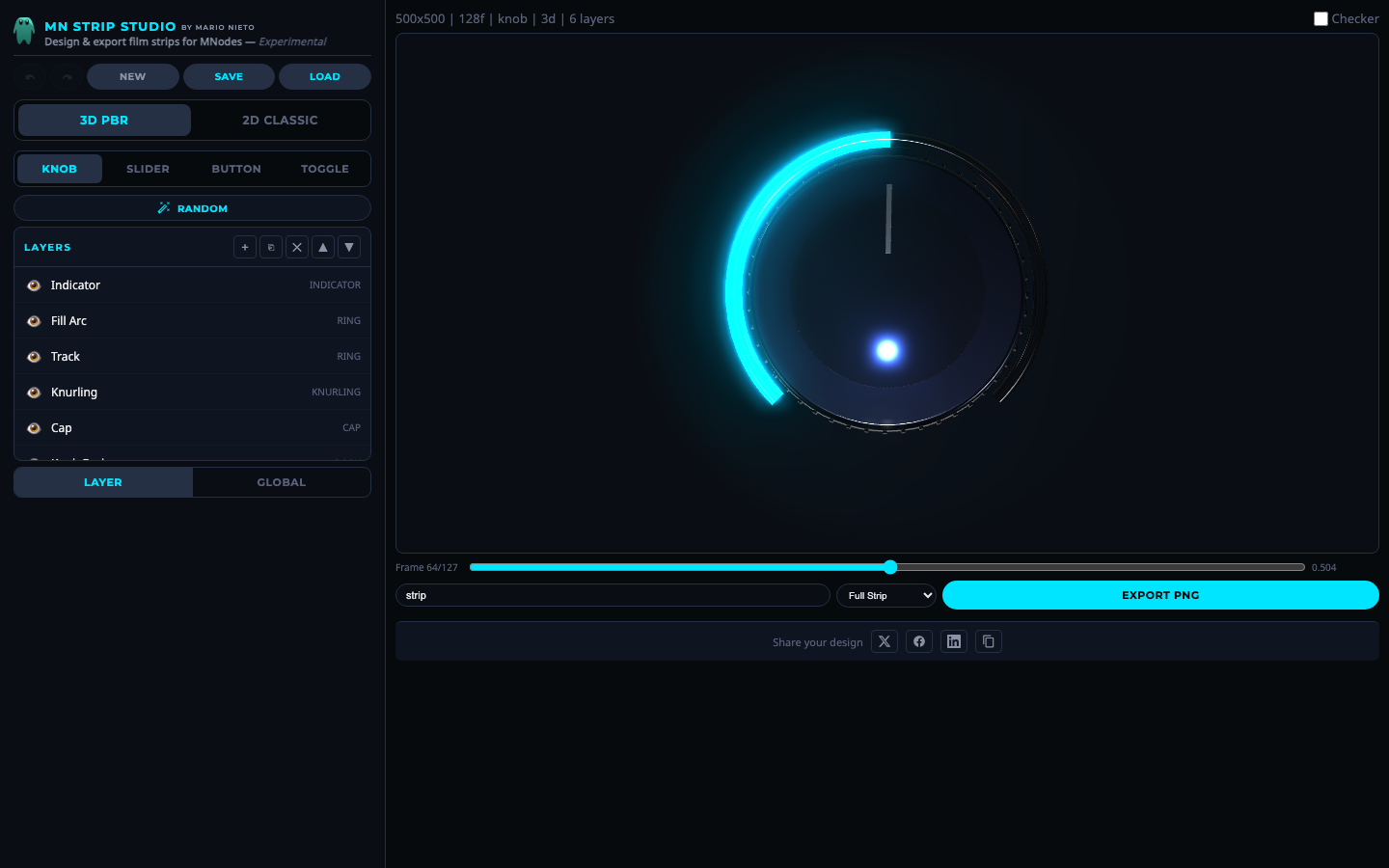 MN Strip Studio interface. Left: design controls and layers. Right: live preview and export.
The screen is divided into two main areas.
Left Panel (Design Controls)
From top to bottom:
Toolbar: Undo, Redo, New (start fresh), Save (download project), Load (open saved project).
Render Mode Toggle: Switch between 3D PBR (photorealistic) and 2D Classic (flat design).
Control Type Tabs: Choose what you are designing: Knob, Slider, Button or Toggle.
Random Button: Generates a completely random design instantly. Great for inspiration.
Layer Panel: Lists all the visual layers that make up your control. You can add, remove, reorder, duplicate and hide layers.
Properties Panel: Two sub-tabs:
- Layer: Shows the settings for the currently selected layer. These are unique to each layer type.
- Global: Shows settings that affect the entire design: frame dimensions, background, lighting, post-processing.
Right Panel (Preview & Export)
Live Preview: Real-time rendering of your control. In 3D mode, you can orbit the camera by middle-click dragging.
Checker Toggle: Shows a checkerboard so you can see transparency.
Frame Slider: Scrub through all frames to preview the animation. Shows the frame number and normalized value (0 to 1).
Export Row: File name, format (Full Strip or Current Frame), and Export PNG button.
Share Row: Share your design on Twitter/X, Facebook, LinkedIn, or copy a link.